
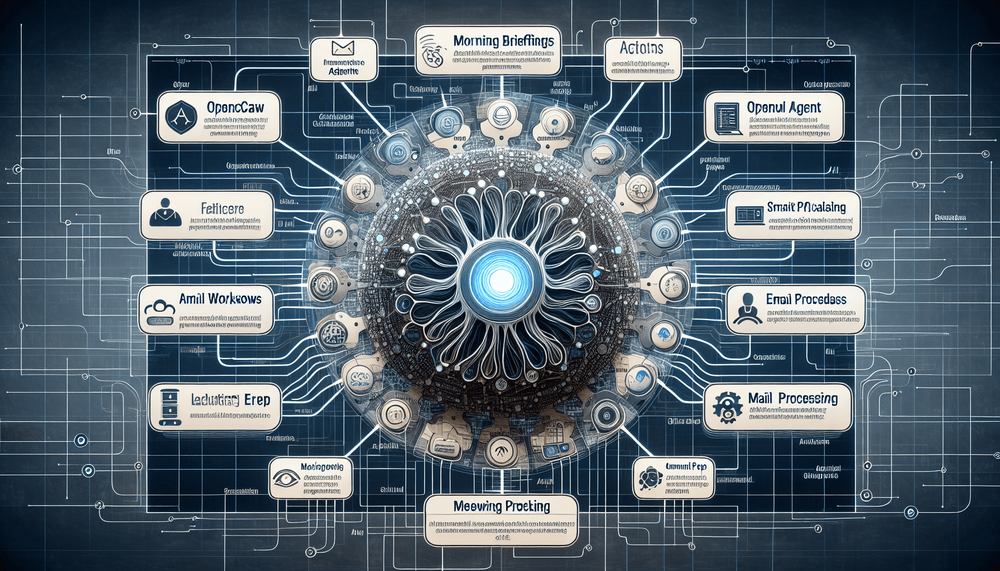
The distance between installing an AI agent and getting it to automate daily tasks is wider than most developers expect. ClawFlows eliminates that gap — it is a proposed open-source workflow library purpose-built for OpenClaw that ships with 111 prebuilt, categorized agent workflows spanning productivity, smart home, finance, health, communication, and developer operations.
What Is ClawFlows?
ClawFlows is a proposed open-source workflow library for the OpenClaw AI agent runtime that ships with 111 prebuilt, categorized automation workflows. Each workflow activates with a single CLI command and orchestrates OpenClaw skills into ready-made sequences covering productivity, smart home, finance, health, communication, and developer operations — eliminating the blank-canvas onboarding problem.
Table of Contents
- Why Your OpenClaw Agent Needs Prebuilt Workflows
- What Is ClawFlows?
- Getting Started: Installation and Setup
- The Complete ClawFlows Catalog: 111 Workflows Across 6 Categories
- Deep Dive: Configuring and Customizing Workflows
- Building Your Own Custom Workflow
- Real-World Usage Patterns and Tips
- What Is Next for ClawFlows
- Getting Started Today
Note: This article is a design specification and illustrative tutorial for a proposed open-source project. ClawFlows and OpenClaw are not yet publicly available. All commands and their outputs shown below are illustrative examples of intended behavior, not executable instructions against released software. Verify that the repository and CLI exist before attempting any steps.
Why Your OpenClaw Agent Needs Prebuilt Workflows
The distance between installing an AI agent and getting it to automate daily tasks is wider than most developers expect. OpenClaw ships as an extensible agent runtime with a plugin architecture and support for any LangChain-compatible model, but out of the box it presents a blank canvas. Users have to define every automation from scratch: what triggers it, which skills to invoke, how to format outputs, where to route results. This blank-canvas onboarding problem stalls adoption. Most people install OpenClaw, run a demo command, and then shelve it because designing useful workflows from zero demands time they do not have.
ClawFlows eliminates that gap. It is a proposed open-source workflow library purpose-built for OpenClaw that ships with 111 prebuilt, categorized agent workflows spanning productivity, smart home, finance, health, communication, and developer operations. Each workflow can be activated with a single CLI command. By the end of this tutorial, readers will know how to install ClawFlows, enable and customize workflows, chain them together, and build a brand-new custom workflow ready for community contribution.
What Is ClawFlows?
Architecture Overview
ClawFlows operates as a workflow layer that sits on top of the OpenClaw agent runtime. It does not replace or modify OpenClaw's core; instead, it provides a structured library of workflow definition files that the agent runtime reads and executes. A YAML file defines each workflow, containing a name, description, trigger configuration (scheduled, event-driven, or manual), a mapping of OpenClaw skills to invoke, parameter defaults, and an output format specification. At runtime, OpenClaw's skill executor reads these definitions, resolves skill dependencies, and orchestrates execution in the order the workflow specifies.
The relationship between the three layers is straightforward: OpenClaw skills are discrete, single-purpose capabilities (fetch calendar events, send a Slack message, query an API). ClawFlows workflows orchestrate sequences of those skills with preconfigured triggers and parameters. The OpenClaw agent runtime is the engine that schedules and executes everything. ClawFlows simply provides 111 ready-made orchestration templates.
Running the catalog listing command reveals the scope of what ships out of the box:
# Illustrative output — requires OpenClaw installation (not yet publicly available)
$ openclaw flows list

ClawFlows Catalog v1.0 — 111 workflows across 6 categories

  Productivity .............. 22 workflows
  Smart Home ................ 18 workflows
  Finance & Budgeting ....... 16 workflows
  Health & Wellness ......... 15 workflows
  Communication & Email ..... 21 workflows
  Developer & DevOps ........ 19 workflows
  ─────────────────────────────────────────
  Total                       111 workflows

Use 'openclaw flows info <workflow-name>' for details.
Key Design Principles
ClawFlows follows four design principles that keep the library practical and maintainable:
- Single-command enablement. Every workflow activates with
openclaw flows enable. Advanced customization uses YAML override files, leaving source workflow files untouched. - Modular composition. Each workflow runs standalone or chains into multi-step sequences. No workflow assumes the presence of another.
- Community-driven extensibility. The community contributes and extends the entire library through a clear pull request process and enforced naming conventions.
- Category-based organization. Developers browse by domain rather than hunting through a flat list, keeping the 111-workflow catalog navigable.
Getting Started: Installation and Setup
Prerequisites
ClawFlows requires a working OpenClaw installation (version 0.9 or later) with the agent runtime configured and responsive to CLI commands. Python 3.10 is required for match-statement syntax used in the OpenClaw runtime. Verify with python3 --version.
Beyond the base agent, individual workflow categories depend on specific API keys and integrations. Productivity workflows typically need calendar and task-manager API access (Google Calendar, Todoist, or equivalent). Smart home workflows require connections to platforms such as Home Assistant or SmartThings. Finance workflows need API keys for banking aggregators or services like Plaid. Health workflows integrate with Apple Health exports, Fitbit (requires a configured Fitbit API token), or Oura APIs. Communication workflows require email (IMAP/SMTP or Gmail API) and messaging tokens (Slack, Discord). Developer workflows rely on GitHub or GitLab tokens and CI/CD platform access.
The minimum environment is Python 3.10 or later, 512 MB of available RAM for the agent runtime core (budget roughly 50-200 MB per active LLM-backed skill depending on model size and context window), and a network connection for API-dependent workflows.
On Windows: All path examples in this article assume a Unix-like system. On Windows, use
%USERPROFILE%\.openclaw\extensions\clawflowsor run within WSL. PowerShell users should replace\with`for line continuation in multi-line commands.
Secrets Configuration
API credentials are stored in ~/.openclaw/clawflows/config/secrets.yaml (encrypted at rest by the OpenClaw runtime). Use openclaw config set-secret <key> <value> to register credentials. For example:
# Illustrative — requires OpenClaw installation
$ openclaw config set-secret GOOGLE_CALENDAR_API_KEY <your-key>
$ openclaw config set-secret SLACK_TOKEN <your-token>
Banking and financial credentials (e.g., Plaid access tokens) are high-sensitivity secrets. Never store them in plaintext configuration files. Always use openclaw config set-secret which stores credentials in the system keychain.
Email credentials (IMAP/SMTP passwords, Gmail API tokens) should also be registered via the secrets mechanism rather than placed in workflow YAML files.
Installing ClawFlows
The installation sequence clones the ClawFlows repository into OpenClaw's extensions directory, registers it with the runtime, and verifies the integration:
# NOTE: Verify this repository exists at the URL before cloning.
# Clone the ClawFlows repository
$ git clone https://github.com/openclaw-community/clawflows.git ~/.openclaw/extensions/clawflows

# Register ClawFlows with the OpenClaw runtime
# Illustrative output — requires OpenClaw installation
$ openclaw extensions register clawflows

Registered extension: clawflows (111 workflows loaded)

# Verify installation and integration status
$ openclaw flows status

ClawFlows Extension Status
──────────────────────────
  Version:           1.0.0
  Workflows loaded:  111
  Workflows enabled: 0
  Config directory:  ~/.openclaw/clawflows/config/
  Status:            READY
Enabling Your First Workflow
The "Morning Briefing" workflow is a natural starting point. It aggregates weather, calendar events, top news headlines, and pending tasks into a single briefing delivered at a configured time each day. Enabling, verifying, and triggering it manually takes three commands:
# Illustrative output — requires OpenClaw installation
# Enable the morning-briefing workflow
$ openclaw flows enable morning-briefing

Enabled: morning-briefing
  Trigger:    scheduled (daily at 07:00)
  Skills:     weather-fetch, calendar-today, news-headlines, task-list
  Output:     console + markdown file

# Verify it appears in active workflows
$ openclaw flows active

Active Workflows (1 of 111)
  1. morning-briefing   [scheduled: daily 07:00]   Status: READY

# Trigger it manually to test right now
$ openclaw flows trigger morning-briefing

Running: morning-briefing...

═══ Morning Briefing — June 15, 2025 ═══

☀ Weather: 72°F, partly cloudy, 10% chance of rain
📅 Calendar: 3 events today (standup 9:00, design review 11:00, 1:1 with Alex 15:00)
📰 Headlines: "[Illustrative headline 1]", "[Illustrative headline 2]", "[Illustrative headline 3]"
# Sample output only — actual content fetched at runtime from configured news sources
✅ Tasks: 7 pending (2 high priority)

Briefing saved to ~/.openclaw/output/morning-briefing-2025-06-15.md
The Complete ClawFlows Catalog: 111 Workflows Across 6 Categories
Productivity Workflows (Category 1)
The 22 productivity workflows cover the full arc of a knowledge worker's day. The Morning Briefing (described above) aggregates context for the start of the day. The Daily Planner workflow goes a step further, taking pending tasks, calendar commitments, and estimated effort to produce a time-blocked schedule. Focus Mode Toggle integrates with macOS/Linux Do Not Disturb APIs and Slack status to silence notifications and signal deep work. The Pomodoro Automation workflow manages 25-minute work cycles with 5-minute breaks, logging completed intervals to a productivity tracker.
Additional workflows include Task Triage (sorts an inbox of new tasks by urgency and effort), Weekly Review Generator (compiles completed tasks, unresolved items, and time allocation into a retrospective document), Project Status Summarizer (pulls data from GitHub issues and project boards to produce a stakeholder-ready update), Meeting Notes Formatter, Quick Capture to Inbox, Goal Progress Tracker, and several more specialized automations for recurring planning needs. The complete list is in the reference tables below; not all 22 are described individually in prose.
Smart Home Automation Workflows (Category 2)
Consider a typical arrival home: you unlock the door and want the lights on, the thermostat adjusted, and music playing. The Arrival Routine workflow handles this by detecting phone geofence entry and triggering all three actions. The Departure Routine reverses the process, locking doors, arming security, and switching to an energy-saving HVAC mode.
Energy Optimization runs on an hourly schedule, analyzing current utility rates and solar panel output (if available for the configured home) to shift deferrable loads like EV charging to off-peak windows. Security Check-In is a nightly workflow that verifies all locks, cameras, and sensors are in expected states and sends a summary notification.
Other workflows in this category include Ambient Scene Setting (adjusts lighting color temperature based on time of day), Appliance Scheduling, Leak and Humidity Alerts, Guest Mode Activation, Good Night Routine, and integrations for plant watering systems and pet feeders. See the reference table for all 18 workflows.
Finance and Budgeting Workflows (Category 3)
Sixteen workflows address personal and small-team financial management. Expense Categorization connects to bank transaction feeds and uses the agent's language skills to classify each transaction into budget categories. Subscription Tracker monitors recurring charges and flags new subscriptions or price changes. Bill Payment Reminder generates alerts three days before each due date, pulling amounts and payees from detected recurring transactions. Spending Anomaly Detection compares the current week's spending pattern against a rolling 90-day average and flags outliers above a configurable threshold (default: 2x the category average).
The category also includes Investment Portfolio Summary, Savings Goal Progress, Tax Document Organizer, Currency Exchange Alert, and more.
Health and Wellness Workflows (Category 4)
Fifteen workflows support health tracking and habit formation. Hydration Reminder sends configurable interval-based nudges (default: every 90 minutes during waking hours). Medication Tracker maintains a schedule of medications with dosages and times, sending alerts and logging confirmations. Sleep Analysis Summary pulls data from connected sleep trackers and generates a weekly trend report that flags nights under 6 hours and highlights consistency deviations greater than 45 minutes from the user's weekly median. Exercise Logger accepts voice or text input to record workouts and compiles weekly volume metrics.
Screen Time Nudge monitors accumulated active screen time and triggers a break suggestion after a configurable threshold (default: 2 hours continuous). Additional workflows cover Mood Check-In, Meal Logging, Stretch Reminders, Step Goal Tracking, and Weekly Wellness Report.
Privacy note: Health workflow outputs containing personal medical data (medication schedules, symptom journals) are stored as unencrypted plaintext in
~/.openclaw/output/. Consider enabling output encryption viaopenclaw config set output.encrypt true.
Communication and Email Workflows (Category 5)
Twenty-one workflows target the communication tasks that fragment a developer's day. Email Triage connects to an inbox, classifies messages by priority and action type (respond, delegate, archive, read later), and presents a sorted summary. Meeting Prep Brief triggers 15 minutes before each calendar event, pulling the agenda, relevant documents, and participant context into a single briefing. Follow-Up Drafter detects sent emails that have not received a reply within a configurable window (default: 48 hours) and generates a polite follow-up draft.
What does the Newsletter Summarizer actually do? It identifies newsletter emails by sender patterns, distills each into a three-sentence summary, and appends all summaries to a daily digest file. One command replaces 20 minutes of skimming.
One command replaces 20 minutes of skimming.
Contact Birthday Reminder pulls dates from the address book and sends a morning alert on the day. Slack Digest compiles unread messages from selected channels into a prioritized summary. Other workflows include Meeting Action Item Extractor, Cold Outreach Personalizer, Email Unsubscribe Recommender, Weekly Communication Summary, and more.
Developer and DevOps Workflows (Category 6)
Compare the manual process of reviewing a pull request's context to what the PR Review Summary workflow does: it runs on a webhook trigger when a pull request opens, analyzes the diff, and generates a plain-language summary of changes, potential risks, and test coverage gaps. Dependency Update Alert monitors package manifests daily and flags outdated or vulnerable dependencies using advisory databases. Incident Response Runbook triggers on PagerDuty or Opsgenie webhook events, pulling recent deployment logs, error rates, and relevant runbook steps into a single incident document. Changelog Generator scans merged PRs since the last tag and produces a categorized changelog following Keep a Changelog conventions (keepachangelog.com).
CI/CD Failure Analysis activates on pipeline failure events, retrieves logs, and highlights the most likely root cause with links to relevant code. Code Review Reminder checks for PRs awaiting review beyond a configurable SLA (default: 24 hours) and nudges assigned reviewers. The category also includes Sprint Velocity Reporter, Tech Debt Tagger, Release Readiness Checklist, On-Call Handoff Summary, and others.
Complete Workflow Reference
The following categorized tables list all 111 workflows. Trigger types are Scheduled (S), Event-driven (E), or Manual (M). Complexity levels indicate configuration effort: Low (enable and use), Medium (requires API keys or parameter tuning), High (multi-integration setup). LLM-backed skills (such as text-classify and summary-generate) incur per-invocation costs when using hosted model providers like OpenAI or Anthropic.
Productivity (22): Morning Briefing (S, Low), Daily Planner (S, Medium), Focus Mode Toggle (M, Medium), Pomodoro Automation (M, Low), Task Triage (S, Medium), Weekly Review Generator (S, Medium), Project Status Summarizer (S, High), Meeting Notes Formatter (E, Medium), Quick Capture to Inbox (M, Low), Goal Progress Tracker (S, Medium), Habit Streak Monitor (S, Low), Time Log Exporter (S, Medium), Deep Work Scheduler (S, Medium), Decision Journal Prompt (S, Low), Read-Later Digest (S, Medium), Bookmark Organizer (S, Medium), File Cleanup Reminder (S, Low), Desktop Declutter (M, Low), Context Switcher (M, Medium), End-of-Day Summary (S, Low), Priority Matrix Builder (M, Medium), Weekend Planner (S, Medium).
Smart Home (18): Arrival Routine (E, Medium), Departure Routine (E, Medium), Energy Optimization (S, High), Security Check-In (S, Medium), Ambient Scene Setting (S, Medium), Appliance Scheduling (S, Medium), Leak and Humidity Alert (E, Medium), Guest Mode Activation (M, Low), Good Night Routine (M, Medium), Morning Wake-Up Sequence (S, Medium), Plant Watering Schedule (S, Low), Pet Feeder Timer (S, Low), HVAC Seasonal Tuning (S, High), Garage Door Monitor (E, Low), Window Shade Automation (S, Medium), Air Quality Alert (E, Medium), Package Delivery Alert (E, Medium), Vacation Mode (M, Medium).
Finance and Budgeting (16): Expense Categorization (E, Medium), Subscription Tracker (S, Medium), Bill Payment Reminder (S, Medium), Spending Anomaly Detection (S, Medium), Investment Portfolio Summary (S, High), Savings Goal Progress (S, Low), Tax Document Organizer (S, High), Currency Exchange Alert (S, Medium), Net Worth Snapshot (S, High), Recurring Charge Auditor (S, Medium), Donation Tracker (E, Low), Freelance Invoice Reminder (S, Medium), Expense Report Generator (M, Medium), Budget vs Actual Weekly (S, Medium), Financial Goal Milestone Alert (E, Low), Year-End Financial Summary (S, High).
Health and Wellness (15): Hydration Reminder (S, Low), Medication Tracker (S, Medium), Sleep Analysis Summary (S, Medium), Exercise Logger (M, Low), Screen Time Nudge (S, Medium), Mood Check-In (S, Low), Meal Logger (M, Low), Stretch Reminder (S, Low), Step Goal Tracker (S, Medium), Weekly Wellness Report (S, Medium), Supplement Reminder (S, Low), Meditation Prompt (S, Low), Posture Check (S, Low), Health Appointment Reminder (S, Medium), Symptom Journal (M, Low).
Communication and Email (21): Email Triage (S, Medium), Meeting Prep Brief (E, Medium), Follow-Up Drafter (S, Medium), Newsletter Summarizer (S, Medium), Contact Birthday Reminder (S, Low), Slack Digest (S, Medium), Meeting Action Item Extractor (E, Medium), Cold Outreach Personalizer (M, High), Email Unsubscribe Recommender (S, Medium), Weekly Communication Summary (S, Medium), VIP Sender Alert (E, Medium), Email Template Selector (M, Low), Conversation Thread Summarizer (M, Medium), Social Media Mention Digest (S, Medium), Thank-You Note Drafter (M, Low), RSVP Tracker (E, Low), Voicemail Transcription Summary (E, Medium), Group Chat Highlight Reel (S, Medium), Client Update Composer (M, Medium), Internal Announcement Drafter (M, Medium), Contact Info Updater (S, Medium).
Developer and DevOps (19): PR Review Summary (E, Medium), Dependency Update Alert (S, Medium), Incident Response Runbook (E, High), Changelog Generator (E, Medium), CI/CD Failure Analysis (E, High), Code Review Reminder (S, Medium), Sprint Velocity Reporter (S, Medium), Tech Debt Tagger (S, Medium), Release Readiness Checklist (M, Medium), On-Call Handoff Summary (S, Medium), Environment Drift Detector (S, High), Documentation Staleness Checker (S, Medium), API Deprecation Alert (S, Medium), Security Scan Summary (E, Medium), Feature Flag Auditor (S, Medium), Build Time Trend Analyzer (S, Medium), Error Rate Dashboard Refresh (S, Medium), Deployment Rollback Advisor (E, High), Repository Health Scorecard (S, Medium).
Deep Dive: Configuring and Customizing Workflows
Anatomy of a ClawFlows Workflow File
Every workflow is a single YAML file stored in ~/.openclaw/extensions/clawflows/workflows/<category>/. The Email Triage workflow illustrates the full structure:
# ~/.openclaw/extensions/clawflows/workflows/communication/email-triage.yaml

name: email-triage
description: >
  Connects to the configured inbox, classifies unread messages by priority
  and action type, and outputs a sorted summary.
version: 1.0.0
category: communication

trigger:
  type: scheduled          # Options: scheduled, event, manual
  schedule: "0 8,12,17 * * *"  # min=0  hr=8,12,17  dom=*  mon=*  dow=*
  timezone: "America/New_York"  # Required; never rely on system timezone default

skills:                     # OpenClaw skills invoked in order
  - email-fetch:
      params:
        folder: INBOX
        unread_only: true
        max_messages: "{{parameters.max_messages}}"  # Bound to parameters block below
  - text-classify:
      params:
        taxonomy:
          - urgent-respond
          - respond
          - delegate
          - archive
          - read-later
  - summary-generate:
      params:
        format: ranked-list
        max_length: 500
        max_length_unit: characters   # Explicit unit

output:
  destinations:
    - console
    - markdown_file:
        path: "{{runtime.home}}/.openclaw/output/email-triage-{{date}}.md"
        redact_env_vars: true      # Strip resolved env.* values before writing
  notify:
    - slack:
        channel: "{{env.SLACK_PERSONAL_CHANNEL}}"  # Set via: openclaw config set-secret SLACK_PERSONAL_CHANNEL <channel-name>
        sanitize_template_vars: true   # Prevent env var values appearing in message body

parameters:                 # User-overridable defaults — single source of truth
  max_messages: 50
  priority_threshold: urgent-respond
  notify_on_urgent: true

requirements:               # Required integrations for this workflow
  integrations:
    - gmail-api
    - slack
  env_vars:
    - GMAIL_API_TOKEN
    - SLACK_TOKEN
    - SLACK_PERSONAL_CHANNEL
Each top-level key has a clear role: trigger controls when the workflow runs, skills defines the ordered execution pipeline with per-skill parameters, output specifies where results go, parameters exposes tunable defaults that users can override without touching this file, and requirements declares the integrations and environment variables necessary for the workflow to function.
Templating syntax: ClawFlows uses Jinja2-compatible template syntax for dynamic values such as
{{date}},{{event.id}}, and{{env.VARIABLE_NAME}}. Template variables referencingenv.*are resolved at runtime; useredact_env_vars: trueon output destinations to prevent secret values from appearing in written artifacts. Available variables per trigger type will be documented in the ClawFlows repository once published.
Customizing Parameters
Local overrides live in ~/.openclaw/clawflows/config/overrides/ and follow a simple convention: a YAML file named after the workflow. To change the Morning Briefing's schedule from 7:00 AM to 6:30 AM and add a custom news source:
# ~/.openclaw/clawflows/config/overrides/morning-briefing.yaml

trigger:
  schedule: "30 6 * * *"     # Override: 6:30 AM instead of 7:00 AM

skills:
  news-headlines:
    params:
      sources:
        - default             # Keep the built-in sources
        - url: "https://feeds.example.com/tech-news.rss"
          label: "Custom Tech Feed"
The runtime merges override files on top of the base workflow definition at load time. Only the keys present in the override file replace their counterparts; everything else inherits from the original. This means users never need to fork or edit source workflow files.
Note on merge behavior: Overrides perform a shallow key-level merge — top-level keys in the override replace the corresponding keys in the base file. Nested keys within a replaced top-level key must be fully specified in the override. For example, overriding the
skillskey replaces the entire skills list; you must re-specify all skills in the override, not just the one you are changing.
Chaining Workflows Together
Workflows can be composed into sequential chains where the output of one feeds into the next. Each workflow writes output artifacts to ~/.openclaw/output/<workflow-name>-<date>.<format>. Downstream workflows in a chain receive the preceding artifact path via the CLAWFLOW_INPUT environment variable.
Security note: The
CLAWFLOW_INPUTartifact path is validated by the runtime before use. Paths containing traversal sequences (../) or absolute paths outside the designated output directory are rejected. See theartifact_policyconfiguration below.
A chain definition specifies the ordered list and optional delay between steps:
# ~/.openclaw/clawflows/config/chains/morning-sequence.yaml

name: morning-sequence
description: "Full morning preparation chain"
artifact_policy:
  path_validation: strict          # Reject paths outside ~/.openclaw/output/
  allow_absolute: false
  allow_traversal: false           # Block ../ sequences in artifact paths

workflows:
  - morning-briefing
  - task-triage:
      depends_on: morning-briefing
      delay: 30                    # Integer seconds; parser expects numeric type
  - daily-planner:
      depends_on: task-triage

trigger:
  type: scheduled
  schedule: "30 6 * * *"
  timezone: "America/New_York"     # Required; never rely on system timezone default
Enabling the chain works just like enabling a single workflow: openclaw flows enable morning-sequence. The runtime resolves the depends_on directives and executes workflows in topological order, passing output artifacts forward.
Chain vs. standalone triggers: When a workflow is part of a chain, the chain's trigger governs execution; the workflow's own standalone trigger is suppressed for that execution context. The workflow can still run independently on its own schedule if enabled separately.
Building Your Own Custom Workflow
Scaffolding a New Workflow
The CLI generator creates a properly structured template with a single command:
# Illustrative output — requires OpenClaw installation
$ openclaw flows create meeting-prep \
    --category communication \
    --trigger event \
    --skills calendar-fetch,contact-lookup,summary-generate

Created: ~/.openclaw/extensions/clawflows/workflows/communication/meeting-prep.yaml

Scaffold includes:
  - Trigger: event (webhook placeholder)
  - Skills: calendar-fetch, contact-lookup, summary-generate
  - Parameters: defaults populated
  - Output: console + markdown file

Edit the file to customize, then run:
  openclaw flows enable meeting-prep
Implementing the Logic
Starting from the scaffold, a complete "Meeting Prep" workflow that pulls upcoming calendar events, retrieves participant context from the address book and CRM, and generates a briefing document looks like this:
# ~/.openclaw/extensions/clawflows/workflows/communication/meeting-prep.yaml

name: meeting-prep
description: >
  Triggers 15 minutes before each calendar event. Retrieves participant
  information and generates a structured briefing document.
version: 1.0.0
category: communication

trigger:
  type: event
  source: calendar
  condition: "event.start - 15m"    # Fire 15 minutes before event start

skills:
  - calendar-fetch:
      params:
        scope: next_event
        include_attendees: true
  - contact-lookup:
      params:
        source: address_book  # LinkedIn requires official Partner API access, which is not publicly available. Use address book or CRM integrations instead.
        max_attendees: "{{parameters.max_attendees_to_profile}}"  # Cap profiled attendees
        fields:
          - name
          - title
          - company
        on_missing_field: skip       # Skip absent fields rather than failing
        fallback: email_signature
        on_error: skip_attendee      # Skip unresolvable attendee; do not halt pipeline
  - web-search:
      params:
        query_template: "{{attendee.company | sanitize_search}} recent news"
        # sanitize_search filter: strips boolean operators, quotes, site: directives
        max_results: 3
        on_error: skip              # Skip search failure; briefing continues without news
  - summary-generate:
      params:
        template: meeting-brief
        sections:
          - event_details
          - attendee_profiles
          - company_news
          - suggested_talking_points
        max_length: 800
        max_length_unit: characters   # Explicit unit

output:
  destinations:
    - console
    - markdown_file:
        path: "{{runtime.home}}/.openclaw/output/meeting-prep-{{event.id}}.md"
        redact_env_vars: true
  notify:
    - push:
        title: "Meeting Prep Ready: {{event.title | escape}}"

parameters:
  lookahead_minutes: 15
  include_talking_points: true
  max_attendees_to_profile: 5

requirements:
  integrations:
    - google-calendar
    - address-book
  env_vars:
    - GOOGLE_CALENDAR_API_KEY
Testing locally before publishing is straightforward: openclaw flows validate meeting-prep checks the YAML structure and skill availability, and openclaw flows trigger meeting-prep runs it immediately against the next calendar event.
Contributing Back to the Community
Submitting a workflow to the ClawFlows repository follows a standard pull request process. Name workflow files in lowercase-hyphenated format. Include a description of at least two sentences and specify all required integrations in a requirements field (as shown in the Email Triage and Meeting Prep examples above). Add a README.md in the workflow directory with usage examples. Reviewers check for valid YAML syntax, skill dependency resolution, and adherence to the category taxonomy. If your workflow introduces a new skill dependency, document the external API requirements clearly in the PR description.
Real-World Usage Patterns and Tips
Recommended Starter Bundles
A knowledge worker's day has a natural arc from morning context to evening wrap-up. Covering that arc takes nine workflows: Morning Briefing, Daily Planner, Email Triage, Task Triage, Focus Mode Toggle, Meeting Prep Brief, Follow-Up Drafter, End-of-Day Summary, and Weekly Review Generator. Enable them as a chain or individually; either way, they replace the manual information-gathering that eats the first hour of most mornings.
Developers staying current on a fast-moving codebase can start with a single command: openclaw flows enable pr-review-summary dependency-update-alert cicd-failure-analysis code-review-reminder changelog-generator sprint-velocity-reporter slack-digest. Those seven workflows surface the signals that matter and suppress the noise.
Start with Arrival Routine, Departure Routine, and Good Night Routine if you want smart home coverage. Add Energy Optimization, Security Check-In, and Morning Wake-Up Sequence once you have confirmed your Home Assistant or SmartThings integration works. These six workflows cover entry, exit, sleep, energy, security, and wake-up.
Performance and Rate-Limiting Considerations
When many workflows are active simultaneously, API call budgets become a hard constraint. Gmail's default quota, for example, caps at 250 API calls per user per minute. Each workflow's skill invocations translate to external API calls, and providers like Gmail, GitHub, and home automation platforms enforce rate limits. Staggering scheduled workflows by even a few minutes prevents burst-limit collisions. Rather than scheduling five workflows at exactly 8:00 AM, offset them at 8:00, 8:02, 8:05, 8:08, and 8:10. Workflow execution logs are available via openclaw flows logs <workflow-name> and should be monitored during the first week after enabling a new set of workflows to identify any rate-limit errors or unexpected API consumption.
Rather than scheduling five workflows at exactly 8:00 AM, offset them at 8:00, 8:02, 8:05, 8:08, and 8:10.
What Is Next for ClawFlows
The ClawFlows roadmap includes a visual workflow editor that will let non-CLI users compose and customize workflows through a drag-and-drop interface. The team plans a community marketplace to surface top-rated contributed workflows with one-click installation of curated bundles, and a workflow analytics dashboard showing execution frequency, success rates, average runtime, and API call metrics per workflow.
The catalog will grow as the community contributes, though no specific timeline or target count is set. Integration expansion targets additional smart home platforms (Matter/Thread devices), financial APIs (open banking standards), and health devices (continuous glucose monitors, smart scales). Developers interested in contributing or following development can watch the ClawFlows GitHub repository and join the OpenClaw community Discord (invite link to be published on the repository README).
Getting Started Today
Installing ClawFlows takes two CLI commands after OpenClaw is configured. Enabling the first workflow takes one more, and the entire catalog is ready to browse, customize, and extend. If you build a workflow that solves a real problem, contribute it back and grow a library that benefits every OpenClaw user.