We thought it was time to take a fresh look at the state of play in web-image formats and which one is best suited to your needs. This short guide will give you the quick rundown of the various file types and where they work best:
JPG vs PNG vs GIF vs SVG – What is the Difference?
| Format | Category | Palette | Use for |
| JPG | Lossy | Millions of colors | Still Images Photography |
| GIF | Lossless | Maximum 256 colors | Simple animations Graphics with flat colors Graphics without gradients |
| PNG-8 | Lossless | Maximum 256 colors | Similar to GIF Better transparency but no animation Great for icons |
| PNG-24 | Lossless | Unlimited colors | Similar to PNG-8 Handles still images and transparency |
| WebP | Lossless Lossy | Unlimited colors | Intended replacement for JPG, GIF and PNG Handles animations, still images and transparency |
| SVG | Vector Lossless | Unlimited colors | Graphics/logos for web Retina/high-dpi screens |
GIF: The Graphic Interchange Format
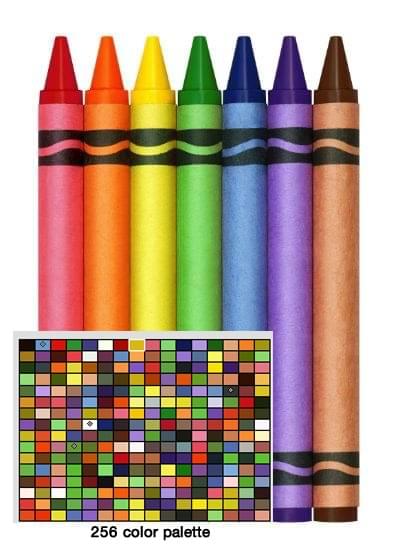
Use GIF for:
- Simple animations (e.g. sending small clips on social media platforms)
- Small icons
- Graphics with low pixel-to-pixel variation (e.g. lots of solid color like logos and flags)
JPEG
‘JPEG (or ‘JPG’) is an image file format that stands for Joint Photographic Experts Group, named after the committee that created the standard in 1992. Unlike GIF, JPEG is a 16-bit format, which means that it can blend red, blue and green light to display millions of color. This makes JPG very ‘photo-friendly’. This is partly why it is a standard format when it comes to most digital cameras on the market. The JPEG format also allows you the flexibility to choose the how much you compress your image – from 0% (heavy compression) to 100% (no compression). Generally, a 60%-75% compression setting will shrink your file considerably while keeping your image looking decent on most screens. While JPEG is well suited to compressing and rendering photography, it is a lossy compression type which means it’s less useful for ongoing editing of an image. Exporting a JPEG results in a loss of quality, and these losses get worse with each successive export – like a photocopy of a photocopy. This is why professional photographers generally shoot in lossless RAW format. Also note that, unlike the GIF and PNG, JPEG can not preserve transparency.Use JPEG for:
- Still Images
- Photography
- Images with complex colors and dynamic
PNG
A newer file format than GIF and JPEG, the PNG (Portable Network Graphics) is like a marriage between both the GIF and JPEG format thanks to its two variants.PNG-8
PNG-8 is similar to GIF in many ways and uses the same 256 color palette (maximum). It has better transparency options and usually exports slightly smaller file sizes. However, PNG-8 has no animation function.PNG-24
PNG-24 allows you to render images with millions of colors – much like JPEG – but also offers the ability to preserve transparency. Because PNG-24 is a lossless format file type, you are likely to get larger files, but if image quality is more important than file size, PNG-24 is your best option. Even so, services like TinyPNG.com can often make a big difference to your file size. Compared to their cousin JPEG, PNG-24 files are not as universally compatible with every app and platform which makes the format marginally less ideal for web sharing. However, it is capable of being edited without diminished qualities.Use PNG for:
- Web graphics that require transparency
- Color heavy and complex photographs and graphics
- Images that require re-editing and re-exporting
WebP
WebP (Web Picture Format) was developed by Google as a replacement for the GIF, JPEG, and PNG formats. Offering lossy and lossless compression as well as animation support, it claims to be a jack of all trades in the image file format game. The format boasts smaller file sizes compared to its predecessors. As of July 2022, WebP is supported by browsers that represent 97% of global users. Improved compression and smaller file sizes come with a trade-off. It is often criticised that the visual quality loss is higher in WebP than other formats after being compressed.Use WebP for:
- Any web graphics needs, especially situations where network speed and file size are important
SVG
Unlike the formats mentioned above, SVG (Scalable Vector Graphics) is not a pure bitmap format. Instead it is a vector format – a close cousin to Adobe Illustrator’s AI format and EPS – that is steadily becoming an attractive option for web and UI designers. Sometimes it’s helpful to think of SVG as ‘HTML for illustrations’ and you need to think about it quite differently to other image formats we’ve listed. SVG is best-suited to displaying logos, icons, maps, flags, charts, and other graphics created in vector graphics applications like Illustrator, Sketch, and Inkscape. Written in an XML-based markup, your SVG can be edited in any text editor and modified by JavaScript or CSS. As vectors can be scaled to any size while retaining crisp image quality, they are ideal for responsive design. Though SVG is a vector format at its core, it is possible (even common) to embed bitmap graphics inside your SVG file – just as you might embed JPEGs in your HTML. You can do this by either linking to an image source via its URL (as you might link to JPG in a webpage) or by encapsulating the pixel image as a Data URI. This gives SVG unchallenged flexibility and power. Though SVG can help keep your images looking beautiful on the web, it isn’t necessarily a format that the everyday person can utilize to save and upload images via their website or social media platforms. Online services like WordPress, Medium, and Facebook will either forcibly convert your SVG to a format they like, or – more likely – outright block your SVG upload. There are a handful of SVG hosting options including imgh.us and Github, as Alex demonstrated here.Use SVG for:
- Logos and icon with strong, geometric, vector-friendly design
- Graphics that may need to be displayed in multiple sizes and screens
- Graphics that respond to their device
- Graphics that need to be edited, updated and redeployed.
Compare and Contrast
Now that we have covered the differences between popular file formats it is time to see them side by side. Below you will see how GIF, JPEG, PNG and SVG formats handle images with both simple and complex colors along with photographic images.Flat Color Graphics
The first type of image we’re going to look at are flat color graphics. This covers most logos and branding, icons, simple maps, charts, and diagrams. The original image is a 23.4 KB PNG image with a 1280 x 1280 dimension. Below you will be able to see the difference in compression size as well as image quality. Note the images were saved using Photoshop’s “Save for Web and Devices” option at the highest quality settings.GIF: 17.6 KB

JPEG 100% (no compression): 53.3 KB

JPEG 75%: 33 KB

PNG-8: 11.8 KB

PNG-24: 19.6 KB

SVG: 6 KB (as a pure vector graphic)
 In the case of this particular image, there isn’t much loss in quality when you compare the six formats – though you’ll notice slight artifacts near edges inside the compressed JPEG. This isn’t always true with flat color graphics, but in most cases, you should be fine with going with the least byte-heavy image. For this image, assuming we have the original vector file, SVG is the obvious choice at 6kb. If we don’t have the vector, the PNG-8 option is a decent fallback with our original image dropping from 23.4 KB to 11.8 KB.
Complex Color Images
The original image is a 328 KB JPEG image with a 1280 x 960 dimension. Below you will be able to see the difference in compression size as well as image quality. Note the images were saved using Photoshop’s “Save for Web and Devices” option at the highest quality settings. As we don’t have access to a vector version of this file, any SVG version of this image would just be a JPEG embedded inside an SVG. This makes it a little redundant, so I won’t offer an SVG example here.GIF: 426kb
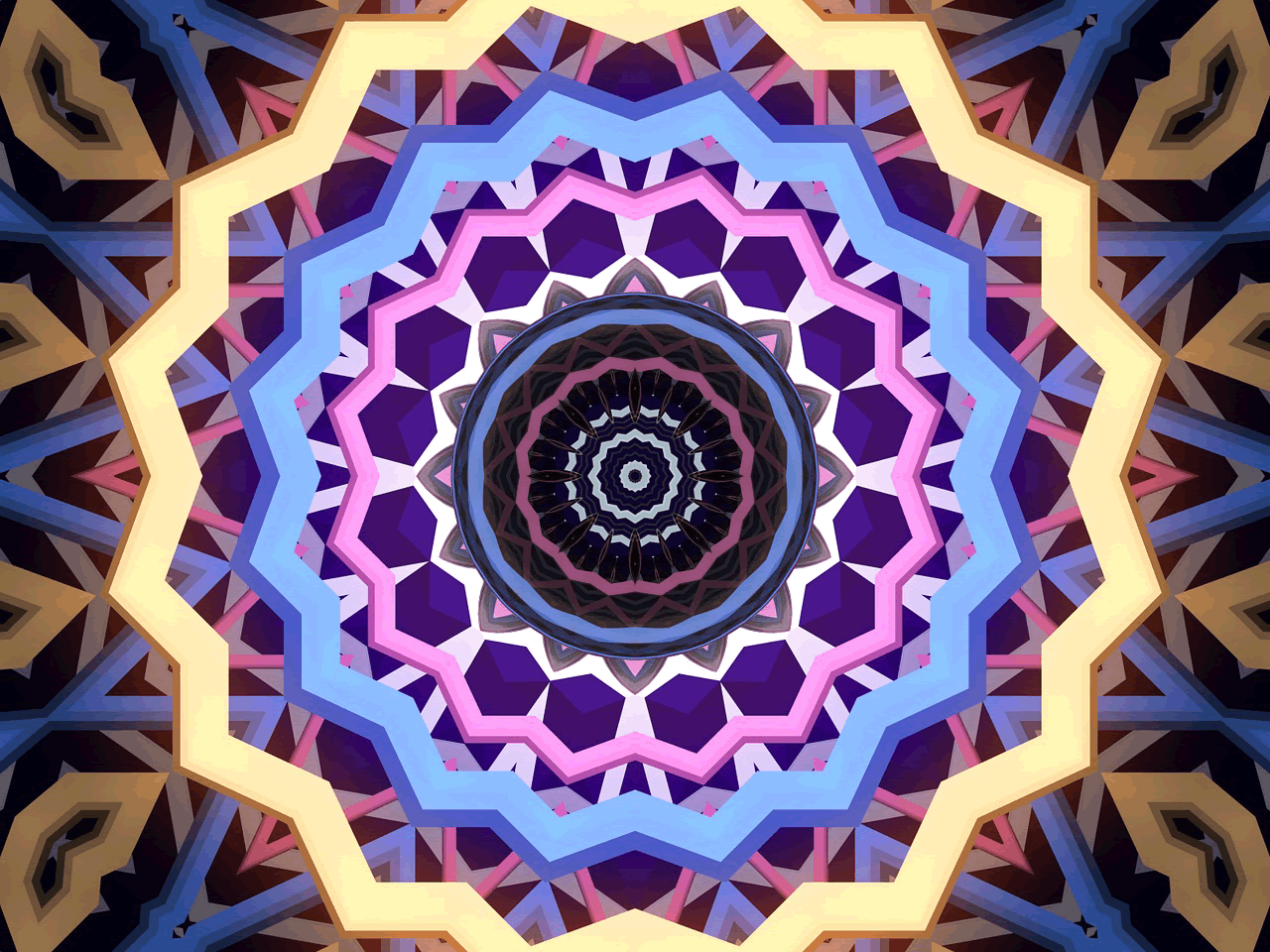
JPEG 100% (no compression): 776 KB
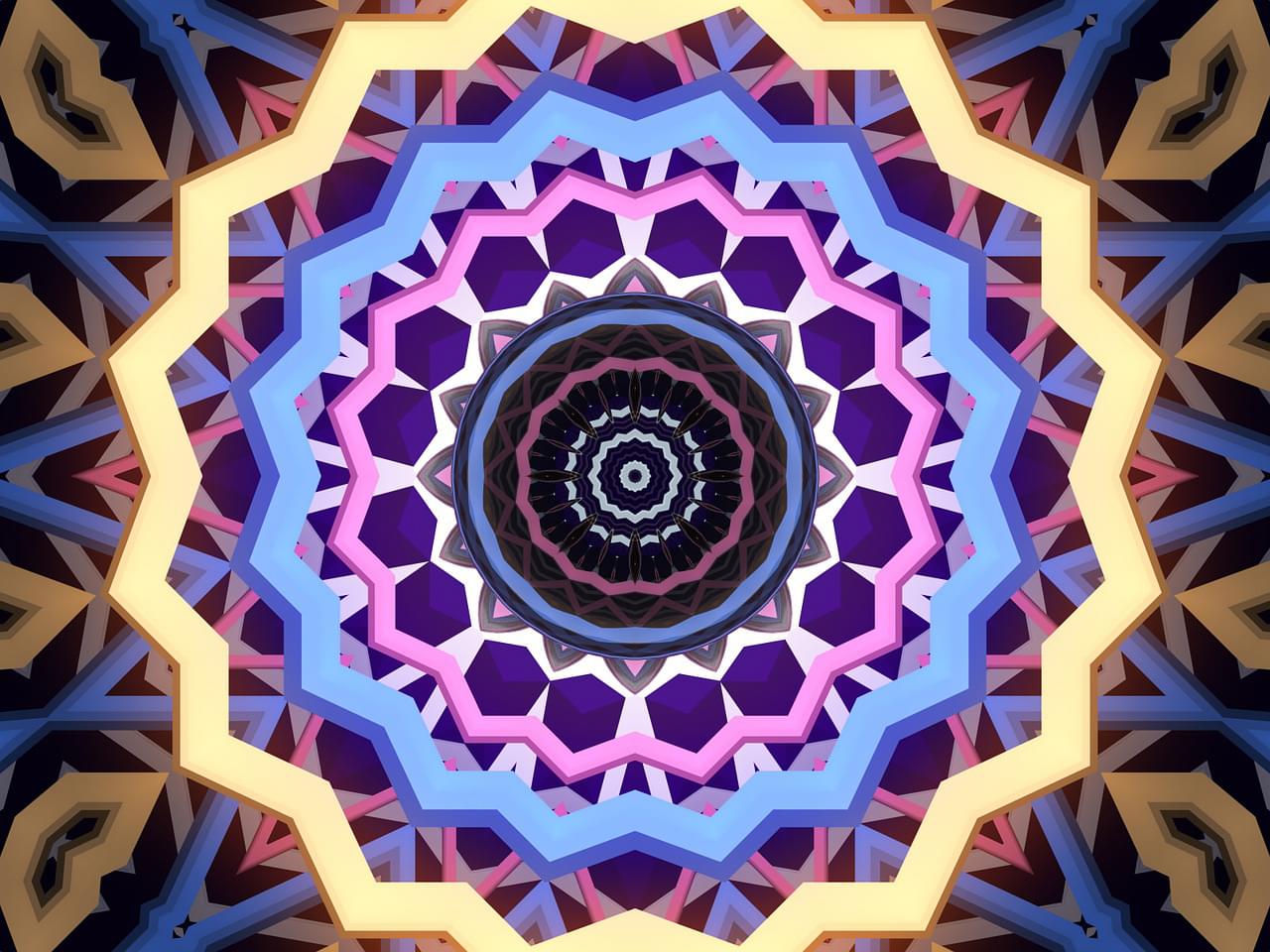
JPEG 75%: 215 KB
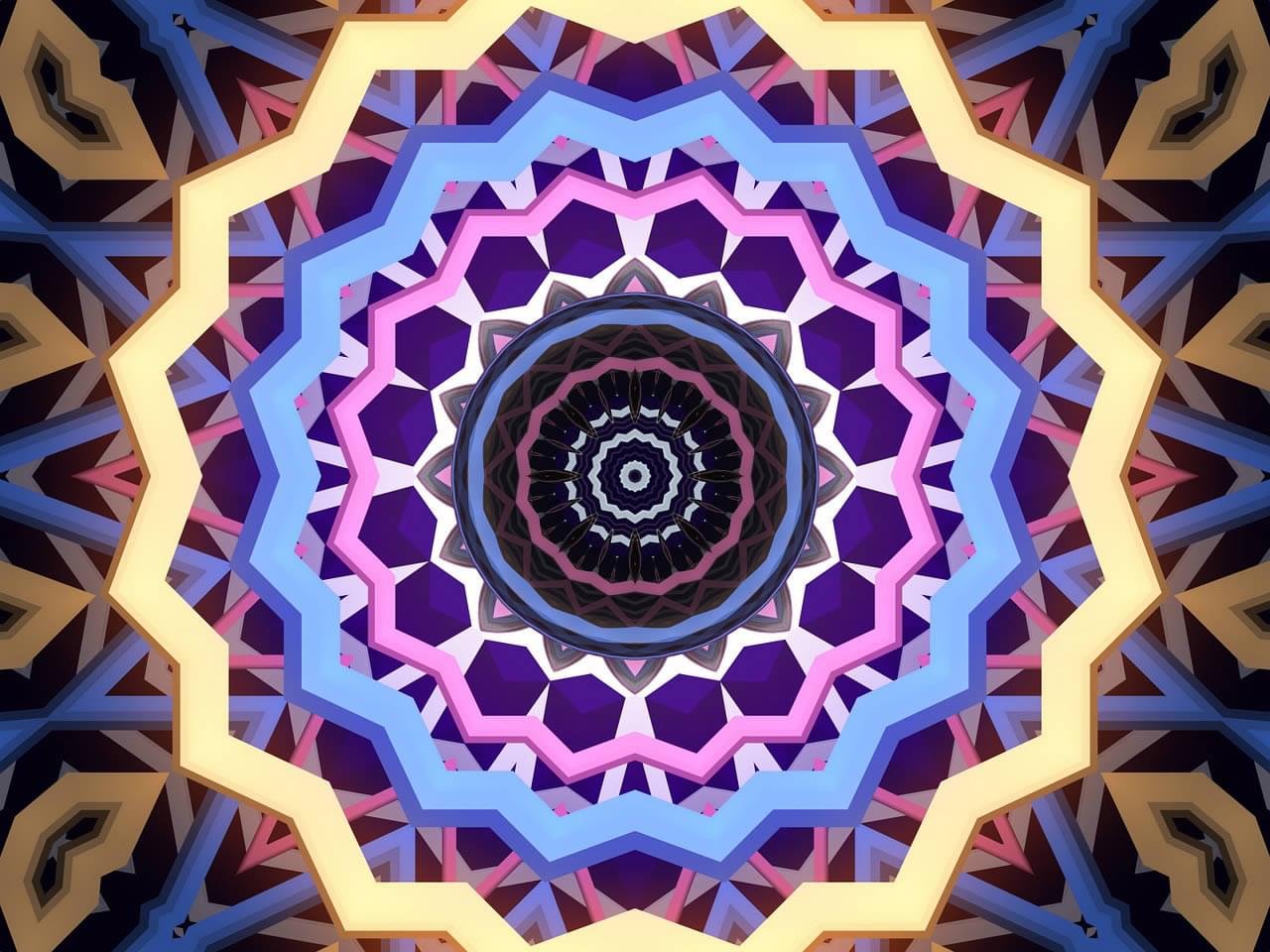
PNG-8: 327 KB
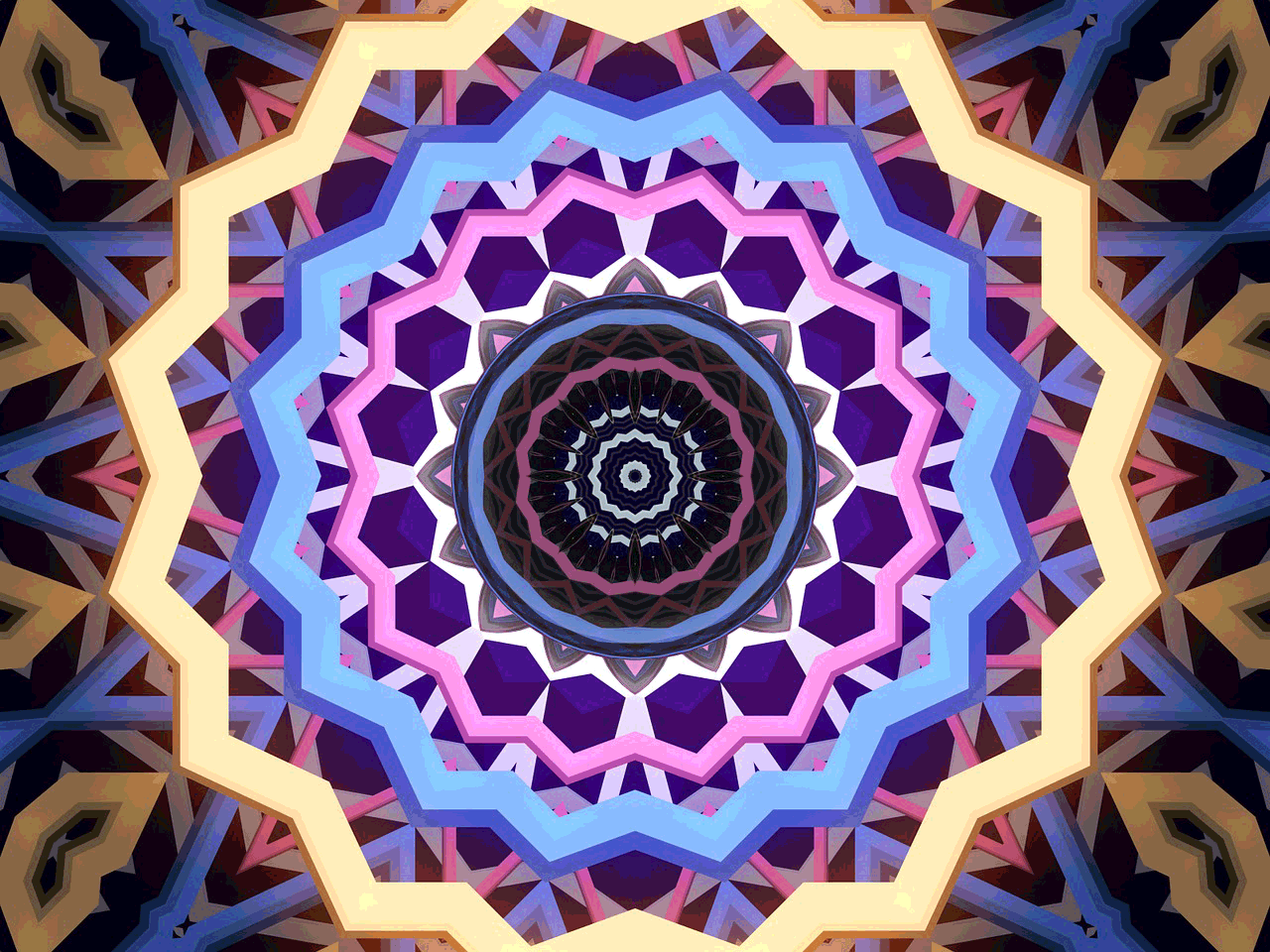
PNG-24: 1.7 MB
Images that have complex colors tend to look better when using a JPEG, PNG-24 or SVG format. Colors are for the most part preserved and don’t have ugly banding and noise that you are likely to get with GIF and PNG-8 formats.Color Photography
The original image is a 215 KB JPEG image with a 1280 x 701 dimension. Below you will be able to see the difference in compression size as well as image quality. Note the images were saved using Photoshop’s “Save for Web and Devices” option at the highest quality settings. Again, there’s little to be gained with an SVG offering here.GIF: 453 KB

JPEG 100% (No compression): 410 KB

JPEG 75% : 410 KB

PNG-8: 395 KB

PNG-24: 1.03 MB
 As with complex images, your photographs are best to be saved under a JPEG, PNG-24 or SVG format. In the photo above, the color remains preserved in all formats aside from banding and noise that stand out in the shadows of the hair, skin, and background as well as at the top of photo as seen in the GIF and PNG-8 outputs.
Frequently Asked Questions (FAQs) about Image Formats
What are the main differences between GIF, PNG, and JPG image formats?
Each image format has its unique characteristics. GIF (Graphics Interchange Format) is ideal for simple graphics, animations, and images with limited colors. It supports transparency but doesn’t handle detailed images or photos well. PNG (Portable Network Graphics) is perfect for detailed, high-quality images. It supports transparency and doesn’t lose quality with compression. JPG (Joint Photographic Experts Group), on the other hand, is great for photos and complex images with lots of colors. It doesn’t support transparency and loses some quality with compression.
When should I use a GIF, PNG, or JPG?
The choice of image format depends on your specific needs. Use GIF for simple graphics, animations, and images with a limited color palette. PNG is ideal for detailed, high-quality images, especially when you need transparency. JPG is best for photos and complex images with lots of colors, but keep in mind that it loses some quality with compression.
Can I convert one image format to another?
Yes, you can convert one image format to another using various software tools. However, keep in mind that converting a lossy format like JPG to a lossless format like PNG won’t restore the lost quality.
How does image compression affect the quality of JPG images?
JPG uses lossy compression, which means some image quality is lost each time the image is compressed. The more you compress a JPG image, the more quality you lose.
Why does PNG file size tend to be larger than JPG?
PNG uses lossless compression, which means it retains all image data and doesn’t lose quality with compression. This results in larger file sizes compared to JPG, which uses lossy compression and discards some image data to reduce file size.
Can I use transparency with JPG images?
No, JPG does not support transparency. If you need transparency, consider using PNG or GIF instead.
What is the impact of image format on website loading speed?
The image format can significantly impact website loading speed. Larger image files take longer to load, potentially slowing down your website. Therefore, it’s essential to choose the right format and optimize your images for the web.
How does image format affect SEO?
Image format can indirectly affect SEO. Search engines favor fast-loading websites, so using the right image format can help improve your site’s loading speed and, consequently, its SEO performance. Also, using the appropriate format for your images ensures they look their best, enhancing user experience and potentially boosting engagement and conversions.
Can I animate a PNG or JPG image like a GIF?
No, only GIF supports animation. If you need to animate an image, you’ll have to use the GIF format.
What image format is best for social media?
The best image format for social media depends on the platform and the type of image. Generally, JPG is a safe choice for photos, while PNG is great for graphics. GIF is ideal for animations. Always check the specific image guidelines for each platform to ensure your images look their best.
 Gabrielle Gosha
Gabrielle is a creative type who specializes in graphic design, animation and photography.
 Jennifer Farley
Jennifer Farley is a designer, illustrator and design instructor based in Ireland. She writes about design and illustration on her blog at Laughing Lion Design.