Keep up to date on current trends and technologies
Blog
Grok 4.6 API: Integration Guide for Python and JavaScript Developers
SitePoint Team

How to Build a Reliable AI Product Finder with WordPress
Tigran Egoyan
How to Prepare for Data Engineering System Design Interviews
Saifullah Adenwalla
TypeScript 6.0 Migration Guide: What's Changed and How to Update
SitePoint Team

Meta Muse Code: Getting Started with the Terminal Coding Agent
SitePoint Team
Grok 4.6 API: Integration Guide for Python and JavaScript Developers
SitePoint Team
DeepSeek Harness: Everything-is-a-Plugin Developer Preview
SitePoint Team
Grok 4.6 API: Integration Guide for Developers (2026)
SitePoint Team
What AI Engineer Interviews Really Test: A Practical Guide to Preparing for Modern AI Roles
Saifullah Adenwalla
Architecting Scalable AI Data Ingestion Pipelines in Modern Node.js
Saifullah Adenwalla

The Best VPNs for Developers
Adrian Try

Architecting Scalable AI Data Ingestion Pipelines for Modern Web Applications
Saifullah Adenwalla
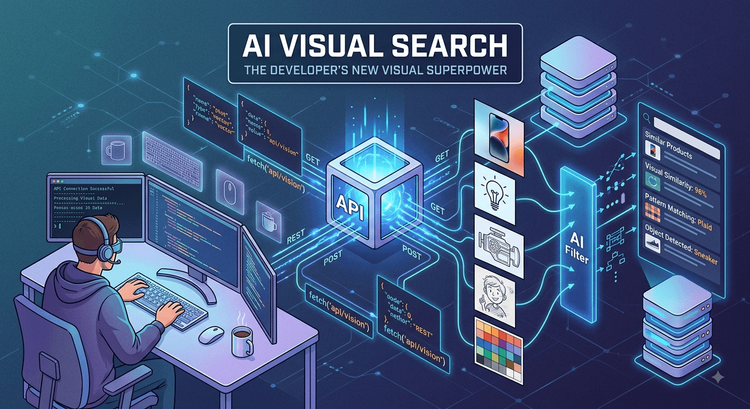
How AI-Powered APIs and Data Extraction Are Reshaping Web Development
Saifullah Adenwalla

Secure by Design: Building AI data Analytics Platforms Enterprises Can Trust
Tarun Chauhan
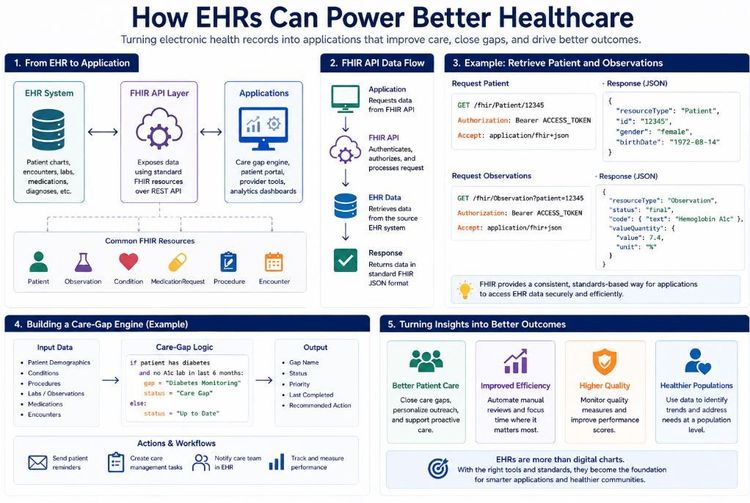
Beyond Digital Charts: How Developers Can Turn EHR Data into Actionable Healthcare Applications
Shilei Zhang
Zero-Dependency SQLite Time Machine for Local Debugging
SitePoint Team
Understanding IP Addresses: What They Reveal and How VPNs Change Your Online Connections
Saifullah Adenwalla

AI-Driven Agile Web Development: Bridging Code and Workflow Efficiency
Saifullah Adenwalla
How Visual Search Works in Modern Web Applications
Saifullah Adenwalla

Getting Started with GPT-5.6 Luna: A Developer's Guide
SitePoint Team
Claude Opus 5: Performance Benchmarks for Developers
SitePoint Team
How to Manage Time as a Freelancer
Jeff Smith

WebMCP Explained: How Developers Can Prepare Websites for AI Agents
Tech Team

6 Proven Strategies for Managing Large Teams of Freelancers
Yassir Sahnoun
Agentic AI in 2026: What Every Developer Needs to Know About Autonomous Agents
SitePoint Team

Cursor vs Claude Code vs Windsurf: The Best AI Coding Tools in 2026 Compared
SitePoint Team
6 Online Document and Text Editors Reviewed
Jacco Blankenspoor

Open-Source vs Commercial LLMs: The Complete Guide (2026)
SitePoint Team
Self-Hosted LLM Costs: Complete 2026 Pricing Guide
SitePoint Team

Local LLMs vs Cloud APIs: 2026 Total Cost of Ownership Analysis
SitePoint Team

Optimizing Token Usage: Context Compression Techniques
SitePoint Team
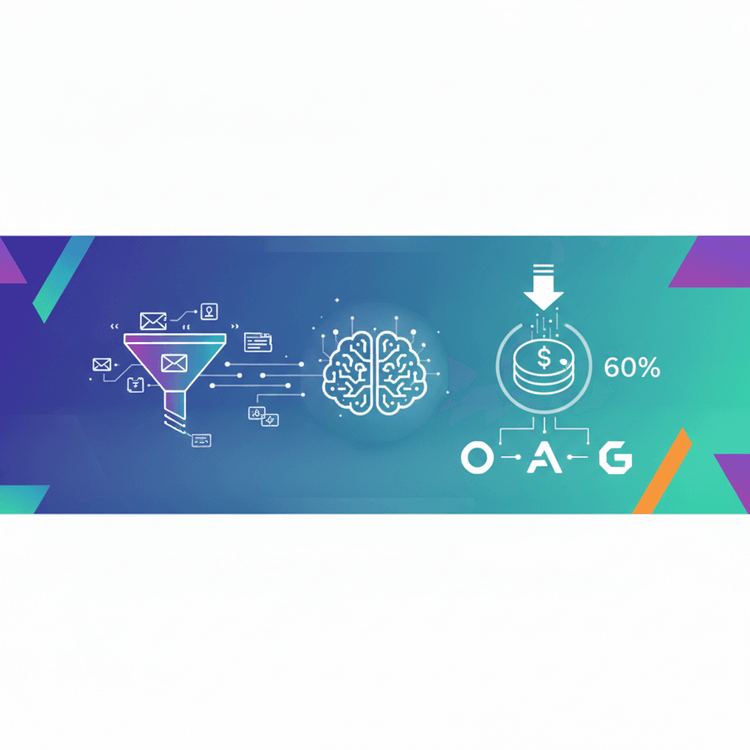
Prompt Compression and Cache Tuning: Cut Your LLM API Costs by 60%
SitePoint Team
Showing 32 of 8529