I ran through this little Fireworks PNG trick in the Design View this morning and thought it was worth dropping in a blog post too. This is a method that’s been around for years, but I’m constantly surprised by how many people don’t know about it. Even in this office, I’ve had web gurus furrowing their brows and insisting “No, no … that can’t be right … can it?”
So, at the risk of having long-time Fireworks users yawn, roll their eyes and think duh!, here it is.
As you probably already know, PNG comes in two flavors — 8-bit and 32-bit. It’s the 32-bit version that gets most of the fanfare.
PNG32’s major characteristics are:
- It uses a flexible “JPEG-like” RGB color model, rather than a limited palette as GIF does.
- It employs a completely lossless compression method, allowing you to save and resave your image with no loss of quality.
- Lossless compression does come at some cost — PNG images are always much fatter than their JPEG equivalents.
- It can reproduce complex, graded transparency settings, similar to a PSD or TIF file.
Of course, Microsoft’s scant regard for the PNG spec (authored way back in 1996) meant that the announcement of the glorious PNG format fell on deaf ears. And rightly so — as Internet Explorer was steadily grinding it’s way to a 95% share of the browser market, naturally an image format that rendered transparency as a solid, dishwater grey for most users qualified as a total non-event for the majority of developers.
Not to be bowed, a lot of bloodyminded developers set about inventing all manner of hacks, tricks and workarounds designed to force IE to play nice. These included many JavaScript/IE Filter-based solutions and even a Flash powered PNG renderer.
While most of these methods worked, all of them were complex, completely tied to the presence of another technology (Flash, JavaScript, etc.), and still failed badly on older browsers.
These efforts were, however, good attempts at making the best of a bad situation.
PNG8’s major characteristics are:
- It employs a palette-based color model (sometimes called an indexed palette), like the one that GIF uses.
- It can’t animate like GIF.
- It offers GIF-like 1-bit transparency. Pixels are either solid or completely transparent, but never partially see-through.
Although this last point is generally accepted as fact, it isn’t strictly true, and this is the topic we’ll be examining today.
Transparency information for all PNGs is contained in a section of the file called a chunk, and according to the spec, for indexed images, it stores alpha channel values for one or more palette entries.
In other words, the chunk is allowed to have more than one transparency color.
Now, as we know, official specs can lay out all sorts of wonderful ideals involving rainbows and unicorns and fluffy kittens — just look at the most of W3C specs — but it’s what happens in the big, wide, dirty world that truly matters.
Let’s look at an example.
We’ll begin in Fireworks with a simple illustration that I’ve given a yellow translucent glow. As you can see in the screenshot below, the background is visible through the glow.
If we set our file format to PNG8 - indexed transparency, we get a result very much like any transparent GIF you might see. One color chip in our palette is set aside for the alpha channel, and all semi-transparent colors are flattened into the background color and rendered opaque.
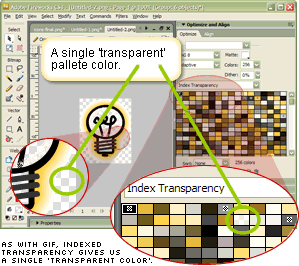
However, if we switch from index to alpha transparency, things get interesting.
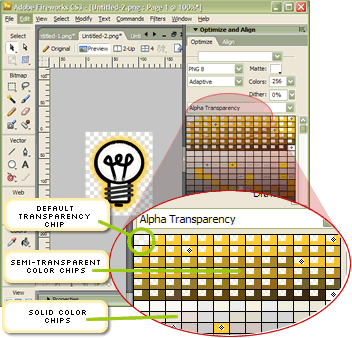
While our default alpha chip is still there in the top left corner, our PNG8 palette preview now shows a new type of color chip with a transparent chiplet cut out of the top-left corner. These are our semi-transparent colors.
Let’s export the graphic and see what our web browsers make of it. If you want to try your own quick tests, the page is here.
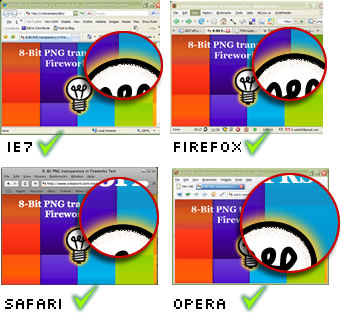
As you can see in the diagram above, all four modern browsers render the yellow glow effect beautifully, with subtly varying levels of transparency. No issues there.
But what about those cranky older IEs? Are they going to suck the life out of the party again?
The answer is: not necessarily.
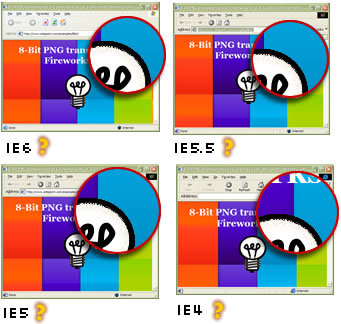
Granted, older browsers won’t render the gentle glow effect, they’ll happily ignore it while continuing to render the 100% transparent parts in glorious, GIF-like, 1-bit alpha. Not perfect, but not tragic either — particularly when compared to the ugly grey boxes that accompany unhacked PNG32s on older versions of IE. Keep in mind that all the IE filter based PNG hacks still leave a grey box in IE5.
Amazingly, Fireworks seems to be the only graphics app that supports this semi-transparent PNG8 export feature — and it has done so since at least version 3.
I can certainly confirm that none of PhotoShop, Gimp, Paintshop Pro, or Xara has this functionality built-in. Since I first published this in the DV, forum member Danieljames has reported that two small apps — pngquant and pngnq — can mimic this trick. However it appears that Fireworks does a better job, so obviously if you have even an older version of Fireworks hanging around, it’s probably worth holding onto just for this feature!
Summary
It seems there are very few reasons for not using more 8-bit Fireworks PNGs in our work. In many typical situations, between 60% and 80% of users will be using a browser that fully supports these files.
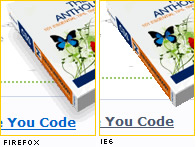
The remaining IE5-6 users will see a slightly jaggier but often very acceptable version of the same image. The example to the right is used on the sitepoint.com home page, and I doubt IE6 users are aware that they’re missing anything.
The generated files are small — the light globe image used in the examples above was less than 6k. I generated a PNG32 version of the same image and it was 3 times the size.
And as they have no reliance on browser hacks, JavaScript, Flash, DirectX, or any other third-party technology, it’s difficult for them to fail.
While there still may be times when full transparency control in all browsers will demand the PNG32 hacks, personally I think PNG8 should become the default choice for web transparency effects.


September 18th, 2007 at 4:08 pm
Thanks for the good writeup, Alex, and for giving us “new hope”.
One thing I noticed when playing with the bulb image in imagemagick.
When you request image information:
>identify -verbose bulb.pngit says:
Channel depth: Red: 8-bit Green: 8-bit Blue: 8-bit Alpha: 4-bitAlso the number of colors is 222.
As you can see 4 bits for alpha, not 1. Then I convert the image to what imagemagick calls PNG8:
>convert bulb.png PNG8:imbulb.pngNow the image information is like:
Channel depth: Red: 8-bit Green: 8-bit Blue: 8-bit Alpha: 1-bitNumber of colors is now 146.
Now this seems to be a 1 bit alpha, information was lost (less colors), the size is slightly smaller and the nice glowing effect is gone.
Anyway, 1 bit or 4, it doesn’t really matter, as long as the Fireworks solution works and degrades gracefully in IE < 7. I was just hoping that there’s a command line tool that can produce the same type of image, maybe there is.
September 18th, 2007 at 6:09 pm
Just a quick note; Fireworks also has a 24-bit PNG offering (basically a lossless colour mode with no transparency options - great for gradients).
September 18th, 2007 at 7:26 pm
That was what I’d expect. The same would have happened if you had opened it in Photoshop and saved it again. The chunks are rewritten and stuff that isn’t understood is turfed.
There is some hope as the developer of ‘PNGNQ’ has his future projects listed as:
* A plug in for GIMP (Problematic since GIMP does not display RGBA paletted mode although it loads and saves them alright.)
* An ImageMagick library extension to do RGBA quantization.
* Photoshop integration.
There hasn’t been much action there for a little over a year though.
September 18th, 2007 at 7:52 pm
Excellent article. I had recently used a lot of transparency effects with png32 on a web page and the home page came to 360kb. I decided to try and export again with different settings to get the page size down. I found the png8 with the alpha export for the first time and got the page size down to 180kb without much deterioration in quality, except for what you mention about IE5-6. Will be using png8 a lot more in the future.
September 18th, 2007 at 10:40 pm
This does seem like a neat trick, but just how limited is the color pallete?
I’ll use GIF for small icons, that need transparency, but aren’t big enough to have much issue with colors, but beyond 32×32 icons, you *must* have 256+ colors, or things just look horrible.
September 19th, 2007 at 1:49 am
Great write up Alex.
September 19th, 2007 at 3:31 am
FYI, I was able to decrease the filesize of the bulb even further by using a post-production PNG compression tool that I use on all of my PNG files. PNGGauntlet uses PNGOut to compress files further. It was able to compress your 5.53 KB (5666 bytes) image to 4.95 K (5071 bytes) - albeit not a huge advantage, but when you find yourself working on a site that is image-heavy, it’s a real saver! (Works amazingly great on PNG32 too, I haven’t tried PNG24.)
…just thought I’d chime in that it can be made even smaller. :) Thanks for the article, I now have a new found use for Fireworks!
September 19th, 2007 at 11:03 am
Steve, it’s a case by case thing. For example, I often use PNG8 for semi transparent shadows on objects like books, allowing the shadows to be cast over any background color. Typically I might use 15-20 shades of black for the shadow and the other 230 colors for the object. That produces a result I’m completely happy with.
However if had a very colorful object and you wanted to apply multicolored glows to it, you might start to run out of palette. Still there’ll always be the 32-bit hacks to fall back to in these situations.
Nice find, Brendon. A small save on the PNG8 is handy, but if it can suck some fat out of PNG32 it would be a real killer app.
September 19th, 2007 at 5:35 pm
Nice work for PNGGauntlet, I tried PNGCrush:
pngcrush -rem alla -reduce -brute bulb.png bulbcrush.pngGave a smaller saving - made the file 5337 bytes
September 19th, 2007 at 9:18 pm
Hurrah!
Being a long-time Fireworks user, it’s nice too see cred’ given to the app’.
I am not well versed in the underlying tech of graphics format, but I too found 8bit PNG alpha to be ‘really really good’ (to misquote Donkey/Shrek). It’s how I made my clouds at http://www.fluffdesign.com (not to moderator - feel free to edit out my URL if I should not have included it, or delete this note - cheers).
September 19th, 2007 at 10:55 pm
Personally, I’m disappointed at the way it works in IE6 and lower. I guess I was hoping for an end-all solution.
Nonetheless, this is a great piece of information to learn about, especially for us Fireworks fans. A compromise is better than nothing, right? :)
September 24th, 2007 at 4:15 pm
Fireworks seems to over optimize the gradients that I’ve tried to the point where they seem more like stripes that transition to fully transparent. Is there any way to tell it to apply more colors for a ‘good’ alpha? The image I’m working with is only using 47 out of 256 colors – Fireworks just refuses to use more than that and the results look horrible with the simple gradient I’m using. Thanks
September 25th, 2007 at 8:34 am
Hi Adam,
I tried a test here with 100% dither.
September 25th, 2007 at 9:49 am
Adam, certainly the first thing I would try to eliminate banding would be dither. It introduces another pattern, but it will be likely less obvious than the stripes.
TO my knowledge there is no limitation on the number of semi transparent chips you can have, but the palette is generated automatically by Fireworks. It’s possible to manually add and subtract color chips from your palette, but I’m not sure if it’s possible to add new semitransparent chips.
If you’re getting a reduced range of alpha transparency chips, then Fireworks isn’t seeing enough difference in the range of your alpha chips. Is it possible to tweak the contrast to produce more range?
September 25th, 2007 at 10:32 am
Alex, thanks for this valuable tip. I have a couple of questions about it:
1. Does IE 6 (or less) just not show any pixel that has any transparency, or does it just hide pixels below a 50% threshold and show pixels that are more opaque than that? I ask, because I have some backgrounds that I want to be 80% opaque, and 100% opaque would be much better than 0%.
1.5 Does this work with a PNG as a CSS background-image, or is it only for IMG src?
2. Can this trick be combined with the JavaScript/IE Filter-based solutions, so that I can still get the small size and IE 5.0 compatibility, but also get better results in IE6+? Especially if the hacks take a couple seconds to load (or the page fails to finish loading and the onload handler never fires), then at least the users can see the non-translucent version until then.
September 25th, 2007 at 11:22 am
Any pixels with any transparency will be made invisible in IE6. Often with things like shadows I’ll create a tight, solid shadow for IE6 and then blend and blur the edge to get a softer effect in newer browsers. You might want to do something similar.
It should work identically in CSS backgrounds.
There’s no reason why you couldn’t combine both methods using conditional comments to hand IE6 a 32bit PNG with filter. It’s messier, but there are certainly times when I could see a graphic being important enough to do that.
September 25th, 2007 at 12:00 pm
Thanks for the response.
There’s no reason why you couldn’t combine both methods using conditional comments to hand IE6 a 32bit PNG with filter. It’s messier, but there are certainly times when I could see a graphic being important enough to do that.
Not really what I meant. I didn’t mean can I hand IE6 a 32-bit PNG with filter, while using this for IE5. I meant can I hand IE5.5 - IE6 an 8-bit PNG with a filter (5.0 or less would just ignore the filter)? Do the filters need the PNG to be 32-bit?
OK, so I just did an experiment using your image, and it seems the answer is that the the filter hack (I tried the one at http://www.twinhelix.com) does seem to require a 32-bit PNG. It didn’t do anything to restore the translucency to the 8-bit PNG.
So, while this would certainly be useful on some things, for my current project I will probably stick with the filter hack in order to have translucent effects in IE5.5 - IE6. IE5.0 will just get solid backgrounds, as that crowd is pretty rare these days on the site I work on. But I do thank you for expanding my repertoire of techniques.
September 26th, 2007 at 7:33 pm
<blockquote>Does this work with a PNG as a CSS background-image, or is it only for IMG src?</blockquote>
Has anyone successfully got a semi-transparent PNG8 working in IE6 as a CSS background-image? I have a 75% opaque white rectangle to overlay onto photos and text will be printed on top of it - so I’ve implemented the rectangle as a background-image of the div which will contain the text. I was expecting IE6 to display a 100% opaque white rectangle, but instead it doesn’t display it at all. This has the effect of obscuring the text on top of it as the dark text doesn’t show up on the dark photo beneath. The white rectangle basically acts as a background and contrast for the text.
Can someone verify whether they get 100% opaque or nothing at all when using a semi-transparent PNG8 as a CSS background-image?
What robust alternatives (which will validate) are there to achieving this effect?
Your advice would be much appreciated.
September 27th, 2007 at 3:53 am
Alex answered this one already:
September 28th, 2007 at 1:42 am
Thank you very much for this article!
It was just in time for new logo :)
September 28th, 2007 at 1:51 am
Thanks bkemper, I must have missed that bit. I’ll read a bit slower next time!
October 21st, 2007 at 12:15 am
Absolutely amazing!
- only 1 image file needed for all browsers
- anti-aliased stuff done easily regardless of background color
- if browsers don’t support variable transparency they show a 1-bit transparency gif (still looks ok, no hacking needed)
- file size is really small
October 24th, 2007 at 8:03 am
It depends on the image how graceful the degradation in IE
October 24th, 2007 at 8:07 am
It depends on the image how graceful the degradation in IE < 7 is. The image should only partially use transparency, like the glow of the bulb.
October 26th, 2007 at 12:34 am
Also checkk out Manfred, a pngquant gui
http://jedisthlm.com/2006/03/16/manfred-a-pngquant-gui/
November 14th, 2007 at 4:01 pm
I switched from png to gif in photoshop save, and it crunched the bg image down from 3.6kb to 300bytes.
that is almost 100 times smaller in size, how can I get that kind of compression with .png? Do i really have to use some 3rd party tool to shrink them? Why not just use .gif for small images (like tiled backgrounds)?
November 14th, 2007 at 4:02 pm
sorry, i mis-stated it…it went from 3.6kb to .3kb.
November 14th, 2007 at 5:03 pm
Chovy, that sounds wrong, unless you’re exporting PNG32 — not PNG 8. Can you post a link to the the original graphic and the two exports?
November 23rd, 2007 at 12:07 am
@ Brownspank :
“Personally, I’m disappointed at the way it works in IE6 and lower. I guess I was hoping for an end-all solution.”
No need to be disappointed, the loss of alpha channel is a well-known limitation of IE6 and below … (Very) limited browser implies (very) limited workarounds ;)
“Nonetheless, this is a great piece of information to learn about, especially for us Fireworks fans. A compromise is better than nothing, right? :)”
Yeah :) It’s more than a compromise, since IE6 (and older) get less and less used.
This kind of trick with 8-bit PNGs are really worth it !
November 23rd, 2007 at 12:08 am
@ Brownspank :
“Personally, I’m disappointed at the way it works in IE6 and lower. I guess I was hoping for an end-all solution.”
No need to be disappointed, the loss of alpha channel is a well-known limitation of IE6 and below … (Very) limited browser implies (very) limited workarounds ;)
“Nonetheless, this is a great piece of information to learn about, especially for us Fireworks fans. A compromise is better than nothing, right? :)”
Yeah :) It’s more than a compromise, since IE6 (and older) get less and less used.
This kind of trick with 8-bit PNGs is really worth it !
January 11th, 2008 at 7:27 am
Hi,
I’ve tried opening an existing PNG image (originally saved at 32-bit) followed the instructions above:
1 - In the export wizard - change format to PNG 8
2 - change transparency to Alpha Transparency
3 - changed the # of colors to 222
4 - exported it…
The new PNG still comes out with the portion that is supposed to be transparent - NOT (testing in IE6).
What am I doing wrong? Does the shadow/glow have to be on a separate layer (right now the entire image is merged).
Any suggestions are greatly appreciated!
Thanks!
January 11th, 2008 at 8:12 am
Nevermind— I should have pressed, “Export” not “OK”… (duH)
It works fine now, after refreshing!
:)
January 20th, 2008 at 2:59 am
Thank you!! This solved a problem that had been plaguing me for 4 months.
Let’s start planning the party now for the day when IE6 has faded into memory and we can remove our hacks.
February 12th, 2008 at 7:18 pm
I was pointed to this article from the css-discuss list, due to issues with IE6 and transparent PNGs. However, while it worked with one image, the other is still not transparent, and is covering the image behind. I’m not sure why, as I saved them the same way. Most frustrating.
March 11th, 2008 at 9:43 am
Your article saved my sanity. We were having a really nasty problem with IE6 deadlocking when we used the AlphaImageLoader CSS filter, and PNG8s gave us a good way out.
Details at http://blogs.cozi.com/tech/2008/03/transparent-png.html
April 6th, 2008 at 4:20 am
Hi, I’ve tried adjusting my png8 with your info here but I am still getting the background in ie? I have it set to png 8, alpha transparency and so forth, have tried it with various color counts but I still have the same issue. Help?! I believe I am missing the most basic of things here but for the life of me can not ascertain what that thing is!
Thanks so much.
C
April 6th, 2008 at 8:24 am
@ Cassie:
You need to cover the image with a rectangular slice and select the slice. Click on the Preview button on the top bar to see the colors correctly. Make your settings in the Optimize panel with the slice still selected. Then right click the slice (or Ctrl+click on a Mac, I think) and choose Export Selected Slice from the popup menu.
April 6th, 2008 at 11:49 am
@CaryD: Thanks so much! I realized that this method produces the same result as if one were to insert an image in DreamWeaver CS3 and select a .psd file, and select png8 as the file type.
April 7th, 2008 at 4:36 am
If you want png 32s to be transparent in IE6, you just have to use this in your style sheet. It has to be at the very top of your style sheet, and you have to import your style sheet from within another style sheet for it to render correctly.
img { *ie6_-: [png]transparent; }April 20th, 2008 at 11:31 am
i use png-24 with the alpha transparency option and don’t seem to have any problems, expcept of course with IE6. then again i have a deferred javascript referenced in the head section of any pages with png files and the alpha transparency is clear as a bell, drop shadows, gradients, everything is nice and smooth.
June 9th, 2008 at 6:57 am
support gif renamed by file surname PNG :D
June 14th, 2008 at 9:18 pm
Excellent write up here. Thanks!
June 28th, 2008 at 6:23 am
Hey Alex, I quoted this article (and used an image from it) during my talk about “7 mistakes in image optimization”. I thought I should let you know and hope you don’t mind:
http://www.slideshare.net/stoyan/image-optimization-7-mistakes/
Thanks again for the great writeup!
June 28th, 2008 at 7:50 pm
Not at all, Stoyan. Appreciate the hat tip :)
July 26th, 2008 at 8:07 am
Alex, thank you for the article. Until your post and Stoyan’s preso, I had no clue Fireworks could do this!
However, after trying out a few of my favorite PNG design techniques, I am going to have to respectfully disagree that PNG8 is the clear winner. The banding as Adam points out is unacceptable in some cases, and there isn’t a good way (that I can see) to fix it.
Help me see the light over at PNG Alpha Transparency - No Clear Winner and thanks again!
August 26th, 2008 at 11:10 pm
What a nice Challenge !!!!!!!!Busby Seo Challenge
September 1st, 2008 at 9:05 pm
Aaaaghhh!!!
Maybe this blog entry is part of the reason why we’ve had troubles with people thinking it’s a great idea to save large photos as 8-bit PNGs in order to give them a transparent edge!
September 3rd, 2008 at 10:17 am
…. how did I not know this existed?! Not only has this fixed a major issue, but it’s cut my file sizes to a third.
September 8th, 2008 at 7:33 pm
I switched from png to gif in photoshop save, and it crunched the bg image down from 3.6kb to 300bytes.
that is almost 100 times smaller in size, how can I get that kind of compression with .png? Do i really have to use some 3rd party tool to shrink them? Why not just use .gif for small images (like tiled backgrounds)?
pvc granül
December 1st, 2008 at 2:06 pm
Png images has always been favorite to easily my blogpost images to my blog theme. It also works best with my websites having gradient background. The no background effect works like a charm. :)
Busby SEO Test